Ai Architect
AI Architect
AI Render
Output will appear here
Processing Design
Notification
How to Use
Master the AI Design Architect workflow
1
Upload
Take a photo of your room or upload an existing image. Ensure the room is well-lit for best results.
2
Settings
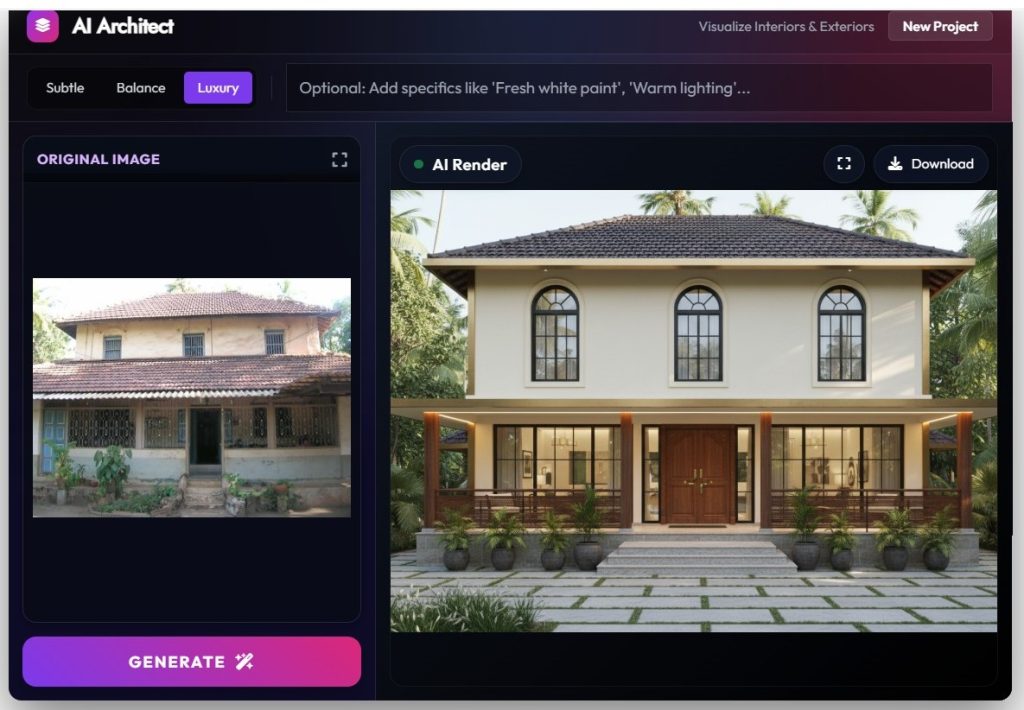
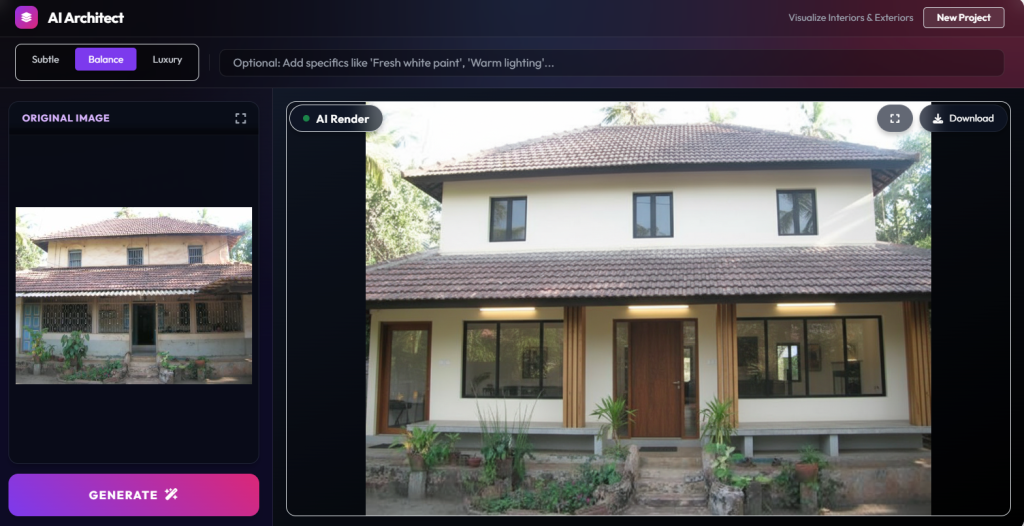
Select intensity. Subtle refreshes the look; Luxury completely remodels the furniture.
3
DescribeOPTIONAL
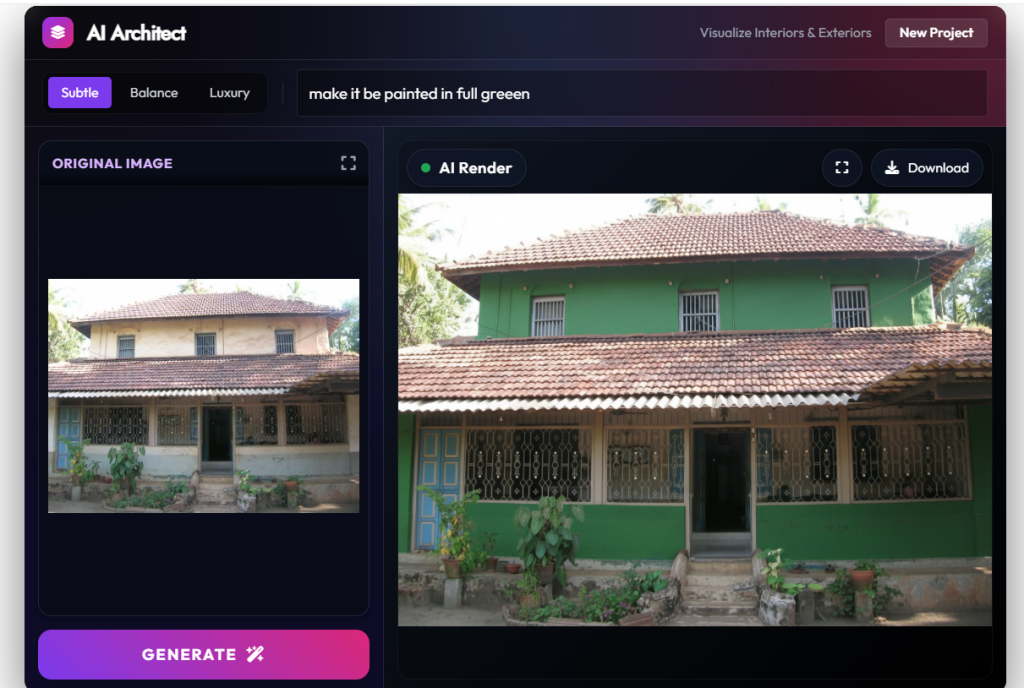
Add a text prompt to guide the style (e.g., “Minimalist, warm wood”). Leave blank for the AI to decide.
4
Generate
Click generate and watch the transformation. The process usually takes 5-10 seconds.
Frequently Asked Questions
Is this tool free to use?
Yes, currently the tool is free for users within the preview environment.
What image format should I use?
JPG and PNG formats work best. Keep file sizes under 5MB for faster processing.
Can I use this on my phone?
Yes! The interface is fully responsive. You can snap a photo directly from your camera.
Does it work for exterior shots?
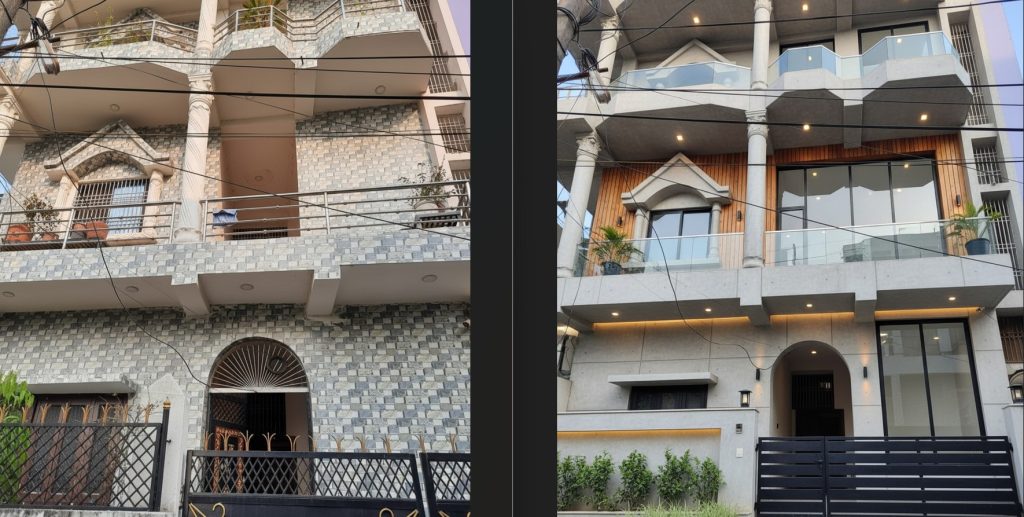
It is optimized for interiors, but it can handle simple exterior facades if the lighting is good.
Why does the furniture change shape?
If you select “High/Luxury” intensity, the AI takes creative liberty to modernize silhouettes. Use “Subtle” to keep shapes exact.
How do I save my design?
Click the “Download” icon in the top right of the generated image canvas to save a PNG.
Can I upload floor plans?
Not yet. The tool currently requires a perspective photo (photo of a room) rather than a 2D technical drawing.
Why is the result blurry?
This usually happens if the input image is very low resolution. Try using a sharper original photo.
Are my photos private?
Images are processed for generation and then discarded from memory. They are not permanently stored on a public server.
The colors are wrong. How to fix?
Use the “Describe” box to specify colors explicitly (e.g., “White walls, navy blue sofa”) to override the AI’s default choices.